INSTALLATION AND USER MANUAL OF THE NODER MOBILE ACCESS APP for IOS
Firstly, check what you need:
iPhone with iOS 18.1 or later
Activation code received from the NODER Access Control System administrator
Internet access
1. Downloading the NODER Mobile Access app
Search for the NODER Mobile Access app in the App Store on your iPhone, use the direct link, or scan the QR code below to download it. Tap the Get button. Once the app has been successfully downloaded and installed, tap Open.
2. Communication settings
When you first launch the app or enable the NFC feature, a system message may appear on your iPhone screen: Payment cards and passes in Wallet will not work automatically while Noder Mobile Access is in use.
What does this mean? This is a standard iOS system notification. It means that while the NODER app is actively open (e.g., when you hold your phone near a reader to open a door), the system prioritizes your virtual access card and prevents Apple Wallet payment cards from popping up automatically.
Does this affect my payments? No. Your payment cards remain completely secure. Once you minimize or close the NODER app, Apple Pay contactless payments in stores will work exactly as they always do.
What should I do? Accept the message to allow the NODER app to communicate with access control readers without interference.
3. Adding cards
To register a new or additional card in the app, go to the “CARDS” tab.
In the upper right corner, tap the “+” icon to add a card.
The “Activate virtual card” screen will display two options:
Scan a QR code – Tap the red QR icon and point your phone’s camera at the code provided by your Administrator. The code will be read automatically and will fill in the text field below.
Enter the code manually – Simply type your 20-character activation code into the text field.
Once the text field is filled (regardless of the method chosen), tap the “Send” button.
After a few seconds, the card will be downloaded to your device. Once the card is successfully downloaded, a “Card claimed succesfully” message will appear. Tap “OK” to return to your card list.
Note: An active internet connection is required during card activation.
The card displays the following information:
Company name to which the card belongs,
Card number, which will be authorized in the access control system,
Virtual card expiration dates,
Current card validity status (the correct status is “active”).
To return to the home screen, go to the “Start” tab.
4. Using cards / Opening doors
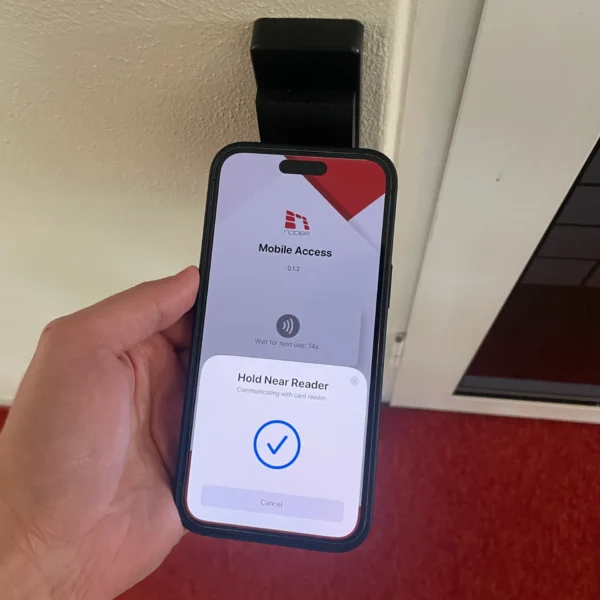
If you already have an added and active virtual card, the “Hold Near Reader” pop-up and phone animation will automaticallyappear after launching the NODER Mobile Access app. This indicates that the app is ready to transmit your ID to the reader.
To open a door, follow these steps:
Ensure that the “Hold Near Reader” pop-up is visible on the screen.
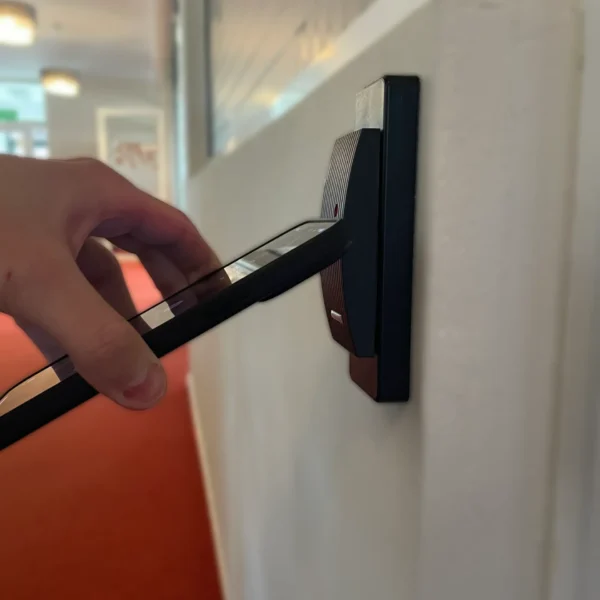
Place the top of your phone (where the NFC module is located) against the access control reader.
Hold the phone steady for a moment and wait for the light signal on the reader. The scanned virtual card number is then sent to the controller, which decides whether to grant or deny access.
Green LED on the reader – Access granted Red LED flashes three times – Access denied
Note: If access is denied, please contact your Access Control System Administrator.
Retry / Re-scanning (iOS System Lock)
Apple’s security policy locks the NFC module for 15 seconds after each scan or after tapping “Cancel.” To try again, you can:
Wait 15 seconds and tap the “Use card” button.
Close and restart the app, which immediately bypasses this limit.
Message displayed upon successful virtual card read.
Message displayed when there is no active virtual card in the app or when the card has expired.
To ensure a proper virtual card read, place the top of your phone (where the NFC module is located) against the access control reader. Hold the phone steady for a moment until the reader confirms the operation with a light or sound signal.
5. App settings
To access the app settings, tap the “Settings” tab.
Option to enable/disable automatic app closing after a successful card read
Option to enable/disable notifications for upcoming card expiration
6. Removing cards
To remove a card, go to the “CARDS” tab, then tap “Delete” on the selected card.
The next step is to confirm the deletion.
NODER Mobile Access App Shortcuts
Below you will find instructions on how to create shortcuts for quickly launching the NODER Mobile Access app.
Adding the app to the Lock Screen
Touch and hold the Lock Screen until the “Customize” and “+” buttons appear at the bottom.
Tap “Customize,” then tap “Lock Screen.”
Tap the “+” button to open the widget gallery. If you already have another widget added, tap the “-” icon to remove it.
Search the list for the “Shortcuts” tab and select “Open App.”
In the new window, select the “NoderMobileAccess” app.
Once you have finished customizing the widgets at the bottom of the Lock Screen, tap “Done” at the top of the screen, then tap the Lock Screen.
Adding the app as a widget
1. Creating an app shortcut
Launch the “Shortcuts” app (pre-installed on iPhones).
Tap the “+” button in the upper right corner to create a new shortcut.
Search the list and select the “Open App” option.
Tap the blue “App” text to select the application.
Choose the NODER Mobile Access app.
Tap the “Open App” title to rename it, for example, to “NODER Mobile Access”.
2. Adding a shortcut as a widget
Go to the Lock Screen.
Touch and hold the Lock Screen until the “Customize” and “+” buttons appear at the bottom.
Tap “Customize,” then tap “Lock Screen.”
Tap “Add Widgets.”
Select the “Shortcuts” widget, then tap it to configure.
Select the previously created app shortcut, e.g., “NODER Mobile Access.”
Tap the blue “Done” button.
Adding the app to the Control Center
Swipe down from the top-right corner of the screen and touch and hold an empty area.
Tap “Add a Control.”
Search the list for the “Shortcuts” tab and select “Open App.”
In the new window, select the “NODER Mobile Access” app.